Identity resolution is the process of recognizing that records across different systems represent the same real-world entity, the same customer, patient, supplier, or organization, and linking them together. Done well, it is the foundation that makes Customer 360, fraud detection, MDM, and reliable AI all possible.
This post is the practical implementation guide: how to use Zingg’s Python API to configure, train, and run identity resolution on your data, from installation through production-ready output. It covers the core API, then shows exactly how to adapt it for Databricks and Microsoft Fabric notebooks.
If you want the conceptual background first, why rules-based approaches fail at scale, what blocking is, why probabilistic matching beats exact matching for real-world data, start with The What and Why of Entity Resolution. For the strategic context on why identity resolution has become the prerequisite for agentic AI, the Learning from Data newsletter covers this from a founder's perspective.
Zingg’s Python API lets you configure and execute identity resolution pipelines as PySpark programs. You define which fields to match and how, point Zingg at your data, and call the relevant phase. Zingg handles the ML model, the blocking that makes large-scale matching tractable, and the output format.
The full pipeline has five phases:
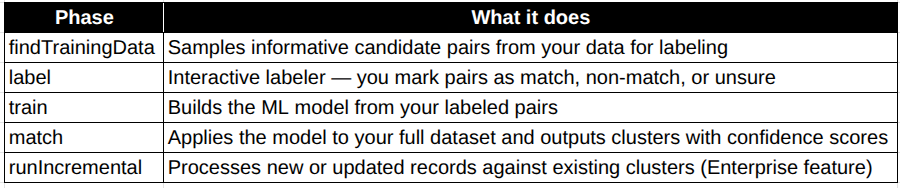
For a new model, run all five in sequence. Once the model is trained, only match (or runIncremental) runs in production.
python -m pip install zingg
Zingg also ships as a Docker image for the quickest start:
docker pull zingg/zingg:0.5.0
docker run -it zingg/zingg:0.5.0 bash
Because Zingg Python programs are PySpark programs, they execute via the Zingg CLI rather than directly with python:
./scripts/zingg.sh --run my_zingg_program.pyFull installation guide: docs.zingg.ai/latest/stepbystep/installation
Every Zingg program starts with an Arguments object. You use it to define which fields to match, where your data lives, and where to write output.
from zingg.client import *
from zingg.pipes import *

# Initialise arguments
args = Arguments()

# Define fields and how to match them
rec_id   = FieldDefinition("rec_id",   "string", MatchType.DONT_USE)
fname    = FieldDefinition("fname",    "string", MatchType.FUZZY)
lname    = FieldDefinition("lname",    "string", MatchType.FUZZY)
stNo     = FieldDefinition("stNo",     "string", MatchType.NUMERIC)
add1     = FieldDefinition("add1",     "string", MatchType.ONLY_ALPHABETS_FUZZY)
add2     = FieldDefinition("add2",     "string", MatchType.FUZZY)
city     = FieldDefinition("city",     "string", MatchType.FUZZY)
state    = FieldDefinition("state",    "string", MatchType.EXACT)
areacode = FieldDefinition("areacode", "string", MatchType.EXACT)
dob      = FieldDefinition("dob",      "string", MatchType.FUZZY)
ssn      = FieldDefinition("ssn",      "string", MatchType.FUZZY)

args.setFieldDefinition([rec_id, fname, lname, stNo, add1, add2, city, state, areacode, dob, ssn])

# Set model location
args.setModelId("100")
args.setZinggDir("models")
args.setNumPartitions(4)
args.setLabelDataSampleSize(0.5)

# Input data
schema = "rec_id string, fname string, lname string, stNo string, add1 string, add2 string, city string, state string, areacode string, dob string, ssn string"
inputPipe = CsvPipe("customers", "data/customers.csv", schema)
args.setData(inputPipe)

# Output location
outputPipe = CsvPipe("output", "/tmp/output")
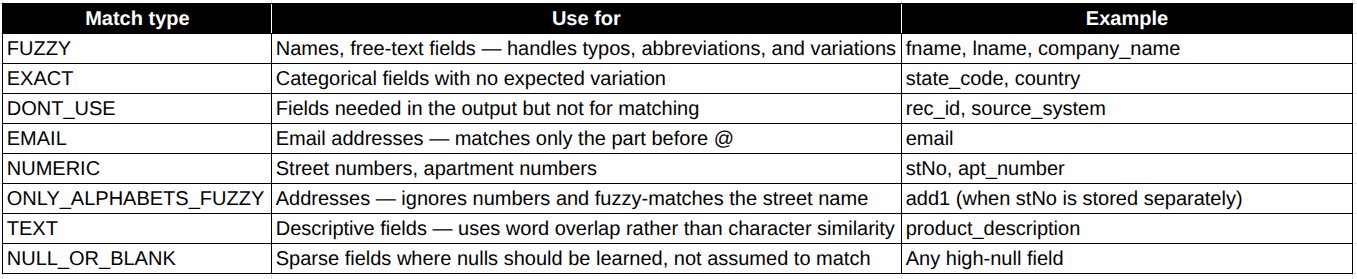
args.setOutput(outputPipe)Choosing match typesThe MatchType you assign to each field directly shapes what the model learns:
Full reference: docs.zingg.ai/latest/stepbystep/configuration/field-definitions
DONT_USE passes the field through to output without contributing to matching, the right choice for any ID column you need downstream but don't want influencing the model.
Zingg uses active learning to select the most informative record pairs from your data. You do not build a training set manually, you label what Zingg shows you.
# Sample candidate pairs
options = ClientOptions([ClientOptions.PHASE, "findTrainingData"])
zingg = ZinggWithSpark(args, options)
zingg.initAndExecute()Then run the interactive labeler:
options = ClientOptions([ClientOptions.PHASE, "label"])
zingg = ZinggWithSpark(args, options)
zingg.initAndExecute()
The labeler displays each pair. Mark it:
1: match (same real-world entity)0: non-match (different entities)2: unsureRun findTrainingData and label in cycles. Each round adds cumulatively. Typically 30–40 labeled pairs are enough for a production-quality model; aim for 40+ matches and 40+ non-matches for datasets around 100k records.
Labeling documentation: docs.zingg.ai/latest/stepbystep/createtrainingdata
options = ClientOptions([ClientOptions.PHASE, "train"])
zingg = ZinggWithSpark(args, options)
zingg.initAndExecute()
The model saves to zinggDir. You only need to train once per schema, the same model handles ongoing production runs without retraining, unless you change field definitions or want to improve accuracy with more labeled pairs.
options = ClientOptions([ClientOptions.PHASE, "match"])
zingg = ZinggWithSpark(args, options)
zingg.initAndExecute()
Or combine training and matching in a single call:
options = ClientOptions([ClientOptions.PHASE, "trainMatch"])
zingg = ZinggWithSpark(args, options)
zingg.initAndExecute()
The match output adds three columns to your original data:
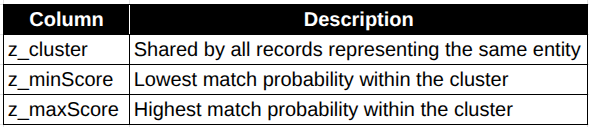
Matching is transitive, if A matches B and B matches C, all three land in the same cluster. Clusters where z_minScore is near 0 are worth manual review; clusters with size above 4–5 are worth inspecting for potential over-merging.
Full scoring documentation: docs.zingg.ai/latest/scoring
Databricks is one of the most common environments for Zingg. The Python API is identical, the differences are in setup, file paths, and the labeling widget.
Create a Databricks cluster using a current LTS runtime (tested with Runtime 15.4, Spark 3.5). Once it’s running:
%pip install zingg
%pip install tabulate# Change these to your preferred locations
zinggDir = "/models"
modelId = "zingg_customer_match"
MARKED_DIR = zinggDir + "/" + modelId + "/trainingData/marked/"
UNMARKED_DIR = zinggDir + "/" + modelId + "/trainingData/unmarked/"
MARKED_DIR_DBFS = "/dbfs" + MARKED_DIR
UNMARKED_DIR_DBFS = "/dbfs" + UNMARKED_DIR
import pandas as pd
import numpy as np
from tabulate import tabulate
from ipywidgets import widgets
import base64
import pyspark.sql.functions as fn
from zingg.client import *
from zingg.pipes import *
def count_labeled_pairs(marked_pd):
n_total = len(np.unique(marked_pd['z_cluster']))
n_positive = len(np.unique(marked_pd[marked_pd['z_isMatch']==1]['z_cluster']))
n_negative = len(np.unique(marked_pd[marked_pd['z_isMatch']==0]['z_cluster']))
return n_positive, n_negative, n_totalOn Databricks, upload your CSV via the Data tab. The file path uses the DBFS /FileStore/tables/ prefix:
args = Arguments()
args.setModelId(modelId)
args.setZinggDir(zinggDir)

schema = "rec_id string, fname string, lname string, stNo string, add1 string, add2 string, city string, state string, dob string, ssn string"
inputPipe = CsvPipe("customers", "/FileStore/tables/customers.csv", schema)
args.setData(inputPipe)

outputPipe = CsvPipe("output", "/tmp/zingg_output")
args.setOutput(outputPipe)

# Field definitions (same as core API above)
rec_id = FieldDefinition("rec_id", "string", MatchType.DONT_USE)
fname  = FieldDefinition("fname",  "string", MatchType.FUZZY)
lname  = FieldDefinition("lname",  "string", MatchType.FUZZY)
stNo   = FieldDefinition("stNo",   "string", MatchType.FUZZY)
add1   = FieldDefinition("add1",   "string", MatchType.FUZZY)
add2   = FieldDefinition("add2",   "string", MatchType.FUZZY)
city   = FieldDefinition("city",   "string", MatchType.FUZZY)
state  = FieldDefinition("state",  "string", MatchType.FUZZY)
dob    = FieldDefinition("dob",    "string", MatchType.EXACT)
ssn    = FieldDefinition("ssn",    "string", MatchType.EXACT)

args.setFieldDefinition([rec_id, fname, lname, stNo, add1, add2, city, state, dob, ssn])
args.setNumPartitions(4)
args.setLabelDataSampleSize(0.5)5. Find training data, label, and save# Find candidate pairs
options = ClientOptions([ClientOptions.PHASE, "findTrainingData"])
zingg = ZinggWithSpark(args, options)
zingg.initAndExecute()
# Init the labeler
options = ClientOptions([ClientOptions.PHASE, "label"])
zingg = ZinggWithSpark(args, options)
zingg.init()
# Check how many pairs are available
candidate_pairs_pd = getPandasDfFromDs(zingg.getUnmarkedRecords())
if candidate_pairs_pd.shape[0] == 0:
print("No unlabeled pairs found. Re-run findTrainingData.")
else:
z_clusters = list(np.unique(candidate_pairs_pd['z_cluster']))
print(f"{len(z_clusters)} candidate pairs found for labeling")The full ipywidgets labeling UI is in the Databricks identity resolution notebook. After labeling, save with:
dbutils.fs.mkdirs(MARKED_DIR)
zingg.writeLabelledOutputFromPandas(candidate_pairs_pd, args)

marked_pd_df = getPandasDfFromDs(zingg.getMarkedRecords())
n_pos, n_neg, n_tot = count_labeled_pairs(marked_pd_df)
print(f"Accumulated {n_pos} matches and {n_neg} non-matches out of {n_tot} total.")
# Train and match
options = ClientOptions([ClientOptions.PHASE, "trainMatch"])
zingg = ZinggWithSpark(args, options)
zingg.initAndExecute()

# Read and display results
col_names = ["z_minScore", "z_maxScore", "z_cluster", "rec_id",
            "fname", "lname", "stNo", "add1", "add2", "city", "state", "dob", "ssn"]
outputDF = spark.read.csv("/tmp/zingg_output")
outputDF.toDF(*col_names).show(50)
Full Databricks guide with screenshots: Open Source Identity Resolution on Databricks for Customer 360
Fabric runs Zingg in Lakehouse notebooks using the Spark runtime. The API is the same, the differences are file paths (ABFSS), directory creation (using notebookutils instead of dbutils), and checkpoint setup.
%pip install zingg
%pip show zingg  # verify installation

# Fabric-specific: set checkpoint directory in OneLake
spark.sparkContext.setCheckpointDir("Files")On Fabric, paths use the ABFSS scheme pointing to your OneLake workspace. Replace the IDs with your own:
# Replace with your actual OneLake workspace and lakehouse IDs
zinggDir = "abfss://<workspace-id>@onelake.dfs.fabric.microsoft.com/<lakehouse-id>/Files"
modelId  = "zingg_customer_match"

MARKED_DIR   = zinggDir + "/" + modelId + "/trainingData/marked/"
UNMARKED_DIR = zinggDir + "/" + modelId + "/trainingData/unmarked/"

import pandas as pd
import numpy as np
from zingg.client import *
from zingg.pipes import *

def count_labeled_pairs(marked_pd):
   n_total     = len(np.unique(marked_pd['z_cluster']))
   n_positive  = len(np.unique(marked_pd[marked_pd['z_isMatch']==1]['z_cluster']))
   n_negative  = len(np.unique(marked_pd[marked_pd['z_isMatch']==0]['z_cluster']))
   n_uncertain = len(np.unique(marked_pd[marked_pd['z_isMatch']==2]['z_cluster']))
return n_positive, n_negative, n_uncertain, n_totalargs = Arguments()
args.setModelId(modelId)
args.setZinggDir(zinggDir)
schema = "rec_id string, fname string, lname string, stNo string, add1 string, add2 string, city string, areacode string, state string, dob string, ssn string"
input_path = zinggDir + "/Test.csv"
output_path = zinggDir + "/Output/" + modelId
inputPipe = CsvPipe("inputpipe", input_path, schema)
outputPipe = CsvPipe("resultOutput", output_path)
args.setData(inputPipe)
args.setOutput(outputPipe)
rec_id = FieldDefinition("rec_id", "string", MatchType.DONT_USE)
fname = FieldDefinition("fname", "string", MatchType.FUZZY)
lname = FieldDefinition("lname", "string", MatchType.FUZZY)
stNo = FieldDefinition("stNo", "string", MatchType.FUZZY)
add1 = FieldDefinition("add1", "string", MatchType.FUZZY)
add2 = FieldDefinition("add2", "string", MatchType.FUZZY)
city = FieldDefinition("city", "string", MatchType.FUZZY)
areacode = FieldDefinition("areacode", "string", MatchType.FUZZY)
state = FieldDefinition("state", "string", MatchType.FUZZY)
dob = FieldDefinition("dob", "string", MatchType.EXACT)
ssn = FieldDefinition("ssn", "string", MatchType.EXACT)
args.setFieldDefinition([rec_id, fname, lname, stNo, add1, add2,
city, areacode, state, dob, ssn])
args.setNumPartitions(4)
args.setLabelDataSampleSize(0.4)IffindTrainingDatais taking too long, reduceLabelDataSampleSizeby at least a factor of 10 and retry.
# Find candidate pairs
options = ClientOptions([ClientOptions.PHASE, "findTrainingData"])
zingg = ZinggWithSpark(args, options)
zingg.initAndExecute()

# Init labeler
options = ClientOptions([ClientOptions.PHASE, "label"])
zingg = ZinggWithSpark(args, options)
zingg.init()

# Retrieve pairs
candidate_pairs_pd = getPandasDfFromDs(zingg.getUnmarkedRecords())
if candidate_pairs_pd.shape[0] == 0:
   print("No unlabeled pairs found. Re-run findTrainingData.")
else:
   z_clusters = list(np.unique(candidate_pairs_pd['z_cluster']))
   print(f"{len(z_clusters)} candidate pairs found for labeling")
The full labeling widget is in the Fabric identity resolution guide. After labeling, save with, note notebookutils instead of dbutils:
notebookutils.fs.mkdirs(MARKED_DIR)
zingg.writeLabelledOutputFromPandas(candidate_pairs_pd, args)

marked_pd_df = getPandasDfFromDs(zingg.getMarkedRecords())
n_pos, n_neg, n_uncer, n_tot = count_labeled_pairs(marked_pd_df)
print(f"{n_pos} matches, {n_neg} non-matches, {n_uncer} uncertain out of {n_tot} total")
options = ClientOptions([ClientOptions.PHASE, "trainMatch"])
zingg = ZinggWithSpark(args, options)
zingg.initAndExecute()

col_names = ["z_minScore", "z_maxScore", "z_cluster", "rec_id",
            "fname", "lname", "stNo", "add1", "add2",
            "city", "areacode", "state", "dob", "ssn"]
outputDF = spark.read.csv(output_path)
outputDF = outputDF.toDF(*col_names)
display(outputDF)
Full Fabric guide with screenshots: Step by Step Identity Resolution with Zingg on Fabric
If your data comes from two separate systems, use the link phase to match records across sources rather than deduplicating within one:
crmPipe     = CsvPipe("crm",     "data/crm.csv",     schema)
billingPipe = CsvPipe("billing", "data/billing.csv", schema)
args.setData([crmPipe, billingPipe])

options = ClientOptions([ClientOptions.PHASE, "link"])
zingg = ZinggWithSpark(args, options)
zingg.initAndExecute()
Link documentation: docs.zingg.ai/latest/stepbystep/link
For production systems where data changes continuously, Zingg Enterprise’s runIncremental phase processes only new and updated records against the existing identity graph, preserving everything else and keeping ZINGG_IDs stable throughout.
from zinggEC.enterprise.common.IncrementalArguments import *
from zinggEC.enterprise.common.epipes import *
from zinggEC.enterprise.common.EArguments import *
from zinggEC.enterprise.common.EFieldDefinition import EFieldDefinition
from zinggES.enterprise.spark.ESparkClient import *

# Base arguments — same field definitions as initial match
args = EArguments()
recId = EFieldDefinition("recId", "string", MatchType.DONT_USE)
recId.setPrimaryKey(True)
# ... remaining field definitions as above

args.setFieldDefinition([recId, ...])
args.setModelId("100")
args.setZinggDir("/tmp/models")

inputPipe = ECsvPipe("customers", "data/customers.csv", schema)
args.setData(inputPipe)
outputPipe = ECsvPipe("output", "/tmp/output")
outputPipe.setHeader("true")
args.setOutput(outputPipe)

# Configure incremental run — only the delta
incrArgs = IncrementalArguments()
incrArgs.setParentArgs(args)

incrPipe = ECsvPipe("customers_delta", "data/customers_delta.csv", schema)
incrArgs.setIncrementalData(incrPipe)

outputTmpPipe = ECsvPipe("output_tmp", "/tmp/zingg_incremental_tmp")
outputTmpPipe.setHeader("true")
incrArgs.setOutputTmp(outputTmpPipe)

options = ClientOptions([ClientOptions.PHASE, "runIncremental"])
zingg = EZingg(incrArgs, options)
zingg.initAndExecute()
For the engineering story behind incremental resolution, see the Zingg incremental flow post on the newsletter.
Incremental documentation: docs.zingg.ai/latest/stepbystep/runincremental

Full Databricks guide
Full Fabric guide
Snowflake product page
BigQuery product page
Cloud running docs
All platform step-by-step notebooks: zingg.ai/resources/guides
docker pull zingg/zingg:0.5.0
docker run -it zingg/zingg:0.5.0 bash
or
python -m pip install zinggZingg Enterprise (persistent ZINGG_ID, incremental flow, native Snowflake, deterministic matching): contact us
Further reading:
- The What and Why of Entity Resolution
- Deterministic vs. Probabilistic Matching: Why You Need Both
- The ZINGG_ID: A Persistent Identifier for Your Entity Graph
- Incremental Identity Resolution: Keeping Your Entity Graph Current
- Learning from Data newsletter — founder POV on entity resolution as data infrastructure


.png)


