


Open Source Identity Resolution on Databricks for Customer 360
Identifying and resolving customer records for Customer 360 initiatives on the Databricks platform
Modern enterprises operate through a variety of specialized applications for sales, marketing, and customer support. Thus, customer data gets siloed in different systems which makes customer analytics extremely challenging. To understand customer behavior, we need to group the individual records spread in these different systems into distinct customer identities. Thus, Identity Resolution, building a single source of truth about customers, becomes an important step in the data analysis pipeline to unify customer data from different sources.
In this guide, we will learn to resolve identities and build a single source of truth of customers on the Databricks environment and Zingg. Zingg is an open source ML based identity and entity resolution framework. It takes away the complexity of scaling and matching definition from us so that we can focus on the business problem. To resolve our customer entities and build a 360 view, we will configure Zingg to run natively within Databricks, run its findTrainingData and label phases to build training data and finally resolve the entities.
Let us take a look at what our customer data looks like. We have taken an example customer dataset with demographic information about a customer and loaded it in Databricks as a csv file. This example set is borrowed from the Zingg repository and can be found here. Reading the first few lines of the customer data shows that many records have variations but belong to the same real-world customer. There are missing attributes and typos across different source systems, and unifying these records by specifying conditional logic is tough.

Besides first name, last name and address attributes, this dataset also contains SSN and date of birth. But these fields are unreliable, and records of the same customer from different sources have variations in them.
If you are installing the Zingg Databricks App, you can skip Step 1 and Step 2 and head straight to Step 3.
Step 1: Set Up a Databricks Account
If you are new to Databricks, the first step is creating an account. Do not worry; it is fairly straightforward to set up!
- Head over to Databricks and sign up for a free trial.
- Once inside, take a quick tour of the interface. The Workspace tab is where you’ll organize your work, and the Clusters tab is for creating the compute resources you’ll need.
Tip: If you’re unsure about cluster settings, choose a smaller size to start — Databricks will automatically scale it up if needed!
This guide is tested with Databricks Runtime 16.4, but newer versions with Spark 3.5 should work.
Step 2: Create a Spark Cluster and Install Zingg
A cluster is essentially a group of computers working together to process your data. Creating one on Databricks is as simple as clicking a button:
- Go to the Clusters tab, hit Create Cluster, and give it a name like “Zingg-Demo.”
- Set the runtime version to a current LTS (Long-Term Support) version for compatibility.
- Next, you’ll need to install Zingg. Start by downloading the latest JAR file from Zingg’s GitHub.
- Upload the file: Open the cluster details, navigate to the Libraries section, and click Install New > Upload JAR.
- Get the Zingg notebooks and add them to your workspace.

Step 3: Configure Zingg
The Databricks Zingg app will automatically install the Zingg notebooks in your chosen workspace. If you are directly installing Zingg, please get the notebooks from the Zingg repository. Configuring Zingg is part of the notebook : 01-SettingUp-Zingg. This notebook installs the Zingg python package, and configures the Zingg API to read and write data from your chosen delta tables. You can follow the instructions in the notebook to get the Zingg Python package, specify where models will be saved, define your fields and configure input and output locations.
!pip install zingg

This command fetches and installs the Zingg Python library. Let us also double-check that Zingg dependencies are installed.
Use the following command to install the required dependencies, especially tabulate and restart the Python kernel:
!pip install tabulate

It is a good idea to keep things neat, especially when you’re working with multiple datasets and training models. Zingg gives you the flexibility to save versioned models and training data. Let us set up directory paths in our notebook for these.
##you can change these to the locations of your choice
##these are the only two settings that need to change
zinggDir = "/models"
modelId = "zinggTrial26Nov_1"

If you are unsure what this means, think of the model folders as “buckets” where Zingg will store its work. The rest of the cde helps Zing ginteract with the Databricks file system and to set up utilities to train Zingg.
Passing matching and data information to Zingg
The following code block builds the Zingg arguments to configure locations of input and output, field attributes and match types.
#build the arguments for zingg
args = Arguments()
# Set the modelid and the zingg dir. You can use this as is
args.setModelId(modelId)
args.setZinggDir(zinggDir)

Specify Input Data For Entity Resolution
Zingg supports multiple file formats like CSV, Parquet, or JSON. For this example, let’s use a CSV file. Define its schema (i.e., column names and types).
schema = "rec_id string, fname string, lname string, stNo string, add1 string, add2 string, city string, state string, dob string, ssn string"
inputPipe = CsvPipe("testFebrl", "/FileStore/tables/data.csv", schema)
args.setData(inputPipe)
Replace /FileStore/tables/data.csv with your actual file path.
For parquet and delta, you would not need the schema definitions.
So our data look something like this:

Now let us configure the output. Just like loading the data, output can be a CSV , Parquet ,Delta Tables, etc.
#setting outputpipe in 'args'
outputPipe = CsvPipe("resultOutput", "/tmp/output26Nov_1")
args.setOutput(outputPipe)

Define Matching Criteria
Here’s where Zingg starts to shine. It uses your criteria to decide how to compare records. Let’s say you want to match people based on first name, last name, and address, along with ssn and dob when present. Alter the following to refer to the actual fields in your data:
# Set field definitions
rec_id = FieldDefinition("rec_id", "string", MatchType.DONT_USE)
fname = FieldDefinition("fname", "string", MatchType.FUZZY)  # First Name
lname = FieldDefinition("lname", "string", MatchType.FUZZY)  # Last Name
stNo = FieldDefinition("stNo", "string", MatchType.FUZZY)    # Street Number
add1 = FieldDefinition("add1", "string", MatchType.FUZZY)    # Address Line 1
add2 = FieldDefinition("add2", "string", MatchType.FUZZY)    # Address Line 2
city = FieldDefinition("city", "string", MatchType.FUZZY)    # City
state = FieldDefinition("state", "string", MatchType.FUZZY)  # State
dob = FieldDefinition("dob", "string", MatchType.EXACT)      # Date of Birth (prefer exact match)
ssn = FieldDefinition("ssn", "string", MatchType.EXACT)      # SSN (should use exact match)
# Create the field definitions list
fieldDefs = [rec_id, fname, lname, stNo, add1, add2, city, state, dob, ssn]
# Set field definitions in args
args.setFieldDefinition(fieldDefs)

Field Definitions define which fields should appear in the output and whether and how they need to be used in matching. Some match types are:
- EXACT means attributes must match perfectly.
- FUZZY allows for differences in the field. For example “Jon” and “John.”
You can get creative here depending on your data!
Zingg Performance Configuration
The numPartitions define how data is split across the cluster. Please change this as per your data and cluster size by referring to the performance section of the Zingg docs. The labelDataSampleSize is used for sampling in findTrainingData. It lets Zingg select pairs for labeling in a reasonable amount of time. If the findTrainingData phase is taking too much time, please reduce this by atleast 1/10th of its previous value and try again.
# The numPartitions define how data is split across the cluster.
# Please change the fllowing as per your data and cluster size by referring to the docs.

args.setNumPartitions(4)
args.setLabelDataSampleSize(0.5)

Step 4: Label Data for Training
This step is part of the 02-LabelTrainingData notebook.
Zingg needs your guidance to leanr how you want to match your data. Let us ask it to start learning our matching criteria. When we run Zingg’s findTrainingData phase, it generates candidate pairs for you to review:
options = ClientOptions([ClientOptions.PHASE,"findTrainingData"])
#Zingg execution for the given phase
zingg = ZinggWithSpark(args, options)
zingg.initAndExecute()
Let us see which record pairs Zingg found for labeling. We will review these pairs in Databricks and label them as matches or non-matches or uncertain. Think of it as teaching Zingg what’s an accurate match and what is not.
Let us start by running Zingg’s label phase which will read the records found by findTrainingData phase.
options = ClientOptions([ClientOptions.PHASE,"label"])
#Zingg execution for the given phase
zingg = ZinggWithSpark(args, options)
zingg.init()

The following code will read the pairs Zingg found and tell us how many got found.
# get candidate pairs
candidate_pairs_pd = getPandasDfFromDs(zingg.getUnmarkedRecords())

# if no candidate pairs, run job and wait
if candidate_pairs_pd.shape[0] == 0:
  print('No unlabeled candidate pairs found.  Run findTraining job ...')
else:
    # get list of pairs (as identified by z_cluster) to label
    z_clusters = list(np.unique(candidate_pairs_pd['z_cluster']))
    # identify last reviewed cluster
    last_z_cluster = '' # none yet
    # print candidate pair stats
    print('{0} candidate pairs found for labeling'.format(len(z_clusters)))

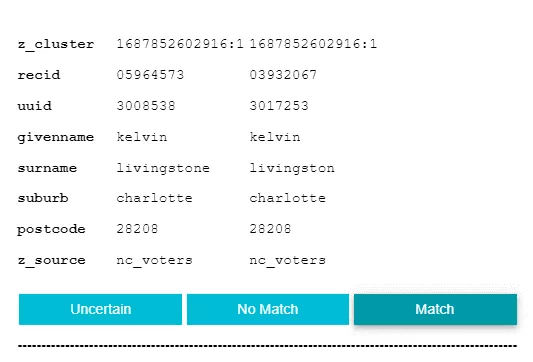
Start labeling to make Zingg learn how we want to match our data
Mark every shown pair as a Match or Not a Match. If you are not sure, press uncertain so that Zingg does not learn from it. Save the labels and repeat the findTrainignData and label till you have about 30-50 matching pairs.
Step 5: Train the Entity Resolution Models
We can now move over to 04-TrainAndMatch notebook. After labeling, it is time to let Zingg do the heavy lifting. Training builds the Zingg models by leveraging the labels provided earlier. The models are trained to your specific dataset. We can start training by executing this cell:
options = ClientOptions([ClientOptions.PHASE,"trainMatch"])
# Zingg execution for the given phase
zingg = ZinggWithSpark(args, options)
zingg.initAndExecute()\#

Let us sit back and relax — Zingg will process the data and persist the models. These models can be used again and again on newer datasets.
Step 6: Match and resolve the records
Once the model is trained, you can run predictions to see which records are matches. This step is part of the notebook 04-TrainAndMatch. The output will be stored in the folder you specified earlier:
outputDF = spark.read.csv("/tmp/output26Nov_1")
colNames = ["z_minScore", "z_maxScore", "z_cluster", "rec_id", "fname", "lname", "stNo", "add1", "add2", "city", "state", "dob", "ssn"]
outputDF.toDF(*colNames).show(100)
The above code will display the matched pairs, along with their match confidence scores. Review these to ensure accuracy.The following columns are added to the input data
z_minScore: It represents the minimum similarity score of that record with another record in the cluster.
z_maxScore: It represents the maximum similarity score of that record with another record of the same cluster.
z_cluster: Matching records share the same z_cluster.
As matching records have identical z_cluster, we can resolve them and use this value as the customer identifier which represents a unique person.

The high probability matches can be consumed in subsequent pipelines and transactional data can be overlaid in conjunction with the Z_CLUSTER to build the customer 360 view. The low probability matches can be manually reviewed and utilized within the pipeline again.
Step 7: Documenting the model
Documenting the model is covered in the notebook 03-GenerateDocument.
You can revisit the training data used to build the models to explain the results to stakeholders, and also help you understand how Zingg makes decisions. Let us generate and view the docs with:
options = ClientOptions([ClientOptions.PHASE,"generateDocs"])
#Zingg execution for the given phase
zingg = ZinggWithSpark(args, options)
zingg.initAndExecute()
DOCS_DIR = zinggDir + "/" + modelId + "/docs/"
dbutils.fs.ls('file:'+DOCS_DIR)

# see the labels
displayHTML(open(DOCS_DIR+"model.html", 'r').read())
The below code will display your metadata such as, Field Name as name of the field, Field Type and Nullable.
displayHTML(open(DOCS_DIR+"data.html", 'r').read())Congratulations, we just implemented our first entity resolution pipeline on Databricks with Zingg!
More Guides
Stuck On A Step? Ask The Community
The Zingg team and community answer questions on Slack. The documentation covers every phase, setting and connector.